Code 128 generator.

This Code 128 generator starts in Code 128. Enter an internal SKU or other ASCII identifier, check the live preview, then download PNG or SVG.

Free. No signup. Data stays on this device.

Barcode type

Code 128

Letters, numbers and ASCII symbols. A good choice for internal SKUs.

Appearance Size & text

Linear codes only.

PreviewCode 128
Loading preview…

From value to barcode

How to use the Code 128 generator

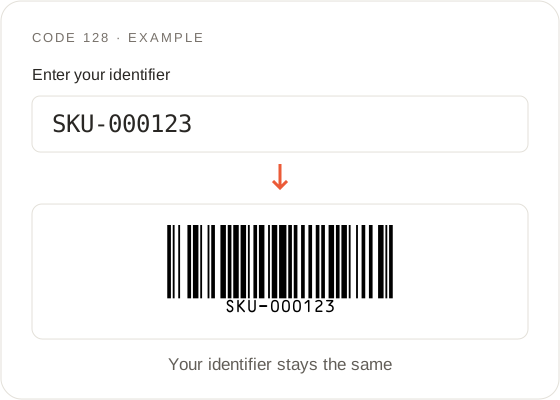
Code 128 Generator: example input and its generated barcode
  1. Code 128 generator input

    In the Code 128 generator, paste the value your warehouse, POS or asset system already stores. The default example is SKU-000123. Replace it with a real identifier before you print; the sample is syntax, not a number assigned to your business.

  2. Check the preview

    The Code 128 generator preview uses the same SVG as the download. Valid input enables Download SVG or Download PNG, chosen in File format. Empty values show “Enter a barcode value.” Non-ASCII text shows “Code 128 accepts ASCII characters. Use QR Code or Data Matrix for other text.” Both downloads stay disabled until you correct the field. Use example restores SKU-000123.

  3. Need multiple labels?

    For a list, CSV/TSV or a label-sheet PDF, use the homepage generator. The Code 128 generator on this page exports one image at a time.

Input reference

What this Code 128 generator encodes

Input rules and validation
What to checkAccepted values & behavior
Code 128Letters, numbers and ASCII symbols. A good choice for internal SKUs.
Code 128 Generator validation details

Internal identifiers

Code 128 is a linear barcode for letters, numbers and ASCII punctuation. Use the Code 128 generator for internal stock codes, bin labels and serials that a scanner should look up in your own database. Drawing the bars does not create a product listing or a GS1 GTIN.
Characters and leading zeros

The Code 128 generator accepts ASCII characters (0–127) and keeps mixed case and leading zeros, for example SKU-000123. It does not convert letters to uppercase. Chinese, emoji or other non-ASCII text is rejected; encode that text as QR Code or Data Matrix on the homepage.

Automatic checksum

You do not type a check character into the Code 128 generator. The encoder adds a mandatory checksum for the symbol; you should not add one by hand. A typical scanner returns the original identifier, not that extra character. Keep the same spelling, hyphens and zeros in the system that will scan the label.

Find your format

Code 128 generator: subsets, GS1-128 and fonts

  • Automatic subsets

    The Code 128 generator chooses subset A, B or C for your ASCII value. There is no subset switch on this page, and there are no separate A, B or C tools. If a partner document names “Code 128 Auto,” this generator already behaves that way.

  • GS1 application identifiers

    GS1-128 is a different symbol with application identifiers such as (01) for GTIN. If your label must carry parenthesized AI data, open the free barcode generator and choose GS1-128. Encoding the same string as ordinary Code 128 will not make it GS1-128.

  • Code 39 requirements

    Code 39 is a narrower alphabet: uppercase A–Z, digits, spaces and a short symbol list. If a scanner is limited to Code 39, use that format on the homepage.

  • Image files, without fonts

    The Code 128 generator draws an image. It does not install a Code 128 font in Word or Excel, and it does not answer font-license questions. If you need a font file, that is a different product. Keep the downloaded PNG or SVG instead.

From screen to print

Code 128 generator downloads: PNG, SVG and size

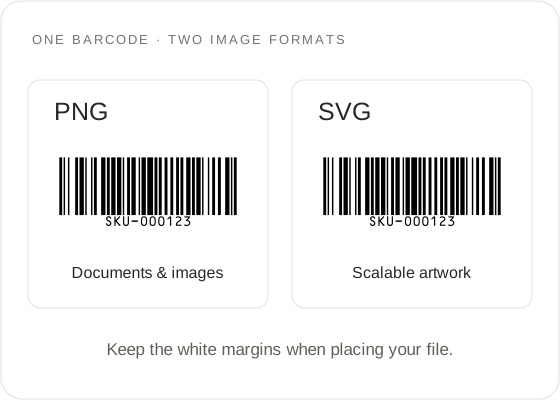
PNG image and scalable SVG artwork with white margins around the barcode
  • Adjust the image

    In the Code 128 generator, Appearance settings change module scale (1–6×, default 3), linear bar height (5–60 mm, default 18) and whether human-readable text is drawn under the bars. Scale changes PNG pixel size. Height applies to this linear code. Quiet zones are built into the SVG; download the file instead of screenshotting the preview.

  • Code 128 generator exports

    SVG is the scalable option for artwork you may place in a layout program. PNG is the usual choice for a document, email or slide. Both Code 128 generator downloads come from the same preview. Files are named barcode-code128.svg or barcode-code128.png. The image does not register the SKU with a retailer.

  • Keep the full symbol

    Longer values make a wider symbol in the Code 128 generator. If a printed label looks cropped, lower the module scale and keep the white margins. Reset appearance returns scale 3×, 18 mm height and visible text.

On your device

Printing and privacy with the Code 128 generator

  • Test the printed label

    Print a test file at 100% / Actual size, with Fit to page off. If a scan fails or returns a different value, compare the printed file with the original identifier, confirm you printed the downloaded file rather than a cropped screenshot, and check that the scanner is set to read Code 128. The Code 128 generator cannot certify a printer or a device.

  • Keep your own source record

    Values entered in the Code 128 generator never go into the address bar, analytics events or a saved workspace. Reloading clears the field. Keep the downloaded file or the original identifier in your own system.

Use the right identifier

When to choose another tool over the Code 128 generator

  • Assigned retail numbers

    Do not invent a 12-digit string and encode it as Code 128 hoping a supermarket will accept it. Assigned retail numbers belong on UPC-A or EAN-13. Use the UPC barcode generator or the EAN generator when you already have that number. Getting a unique GTIN is a separate step through GS1.

  • URLs and other text

    Use QR Code or Data Matrix on the homepage for a URL or text outside ASCII.

Before you generate

Prepare inventory data for the Code 128 generator

Example source record Keep the identifier as text
Product referenceSample item
Barcode valueSKU-000123
Image filebarcode-code128.svg

Use your own identifier before printing.

  • Choose the right database field

    Before using the Code 128 generator, choose the identifier your inventory system actually searches. For example, SKU-000123 may identify a product, while BIN-A12 identifies a storage location. Create the corresponding record in that system first. A barcode can carry either value, but it cannot decide which database field your scanning workflow should use.

  • Test the complete workflow

    Test one complete workflow before preparing many labels. Enter SKU-000123 in the Code 128 generator, download the image, and scan it into a plain text field. Compare the returned characters with the original. Then scan into your inventory application and confirm it opens the intended record. These checks separate encoding from application configuration.

  • Keep naming consistent

    Keep a written naming convention for new internal identifiers. Decide whether hyphens, letter case and leading zeros are meaningful before you use the Code 128 generator. For instance, PART-007 and PART-7 are different input strings. Renaming an identifier later requires updating both your records and any labels that still carry the old value.

  • Check copied spaces

    When copying values into the Code 128 generator, inspect the first and last characters. A space copied from another document can be part of the encoded value even if it is hard to notice under the bars. Compare against the authoritative inventory record rather than removing characters automatically; spaces may be intentional in an existing system.

Ready to hand over

Check a Code 128 generator file before sharing

  1. Inspect the actual file

    After downloading from the Code 128 generator, open the actual file in the application that will place or print it. Verify that the whole symbol and its surrounding white space remain visible. The browser preview proves what was generated; it does not show how a separate document editor might crop or resize the image.

  2. Preserve a master copy

    Keep the original Code 128 generator download as a master copy. Place a copy in your document and preserve its proportions when resizing. Avoid manually narrowing the image to fit a column: that changes the relationship between bar width and height. If space is limited, check the layout and test a sample with the intended scanner.

  3. Separate scanning from lookup

    If the scanner returns the expected text but the application finds no record, check the application field and stored identifier before changing the Code 128 generator input. If no text is returned, check the scanner configuration and the downloaded or printed image. A failed lookup and a failed scan call for different checks.

  4. Prepare the batch mapping

    For multiple identifiers, prepare one value per row and use the homepage bulk workflow linked below. This Code 128 generator page handles one image at a time. Keep a separate list mapping identifiers to products or locations, so a folder of downloaded images does not become your only record of what each label means.

Code 128 generator FAQ

What can I encode with this Code 128 generator?

The Code 128 generator accepts ASCII letters, numbers and symbols, including mixed case and hyphens. The default example SKU-000123 is a typical internal stock code. Non-ASCII text is rejected.

What is the Code 128 generator useful for?

Use the Code 128 generator for inventory, bins, cartons and serials already stored in your system. It is not a substitute for an assigned UPC-A or EAN-13 on a retail unit.

Does the Code 128 generator require a subset choice?

No. The Code 128 generator selects a subset for your value. There is no subset switch.

Can this Code 128 generator create GS1-128?

No. GS1-128 uses application identifiers and is a separate format on the homepage. Ordinary Code 128 will not add those identifiers for you.

Does the Code 128 generator add its own checksum?

Yes. The Code 128 generator adds a mandatory checksum. A typical scanner returns the original identifier. Do not append an extra character by hand.

Can I use the Code 128 generator for supermarket labels?

Only if your buyer asked for Code 128. Assigned retail unit numbers belong on UPC-A or EAN-13. Generating Code 128 does not register a product number.

Does the Code 128 generator download a font?

The Code 128 generator downloads a PNG or SVG image of one barcode, not a font. It does not install a font in Word or Excel.

Why does the Code 128 generator reject my value?

The Code 128 generator needs a nonempty value containing only ASCII characters. Clear the extra character or encode that text as QR Code or Data Matrix on the homepage.

Does the Code 128 generator upload my SKU?

No. The Code 128 generator runs in the browser. The value is not added to the URL, local storage or analytics events. Reloading clears it.

Which Code 128 generator download should I choose?

Choose the Code 128 generator SVG download for artwork you may resize. Choose PNG for a document. Label-sheet PDFs remain on the homepage.

Can this Code 128 generator process a list?

This Code 128 generator page handles one value at a time. Paste a list, import CSV/TSV or download a ZIP/PDF from the homepage generator. Native XLSX is not supported.

Open the Code 128 generator