EAN generator.

This EAN generator defaults to EAN-13. Enter 12 digits or a full 13-digit number, check the preview, then download PNG or SVG. Switch the type to EAN-8 when you have an assigned short identifier.

Free. No signup. Drawing an EAN does not register the number.

12 digits, or 13 including the check digit. Keep leading zeros.

Appearance Size & text

Linear codes only.

PreviewEAN-13
Loading preview…

From value to barcode

How to use this EAN generator

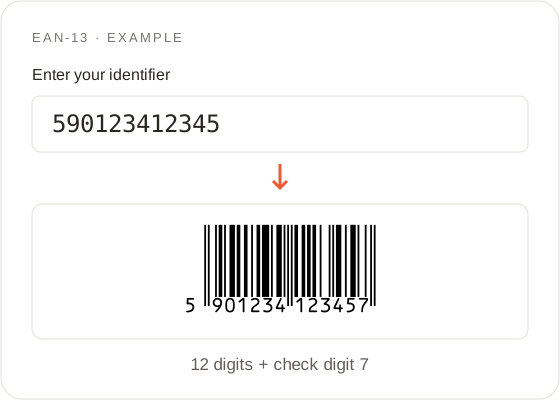
EAN Generator: example input and its generated barcode
  1. Start with EAN-13

    Start the EAN generator in EAN-13 mode. The example 590123412345 is a 12-digit body; the preview adds check digit 7 and shows 5901234123457. A complete 13-digit number is accepted unchanged when the check digit matches. 5901234123450 is a complete number with the wrong check digit: export stays disabled, the message names the expected 7, and the first 12 digits are not rewritten.

  2. Switch for an assigned EAN-8

    For EAN-8, change Barcode type in the EAN generator to EAN-8 and paste a 7- or 8-digit assigned identifier. Switching type does not clear the box; leftover EAN-13 digits will show a length error until you replace them. Use example loads 9638507, which becomes 96385074.

  3. Check and download

    The EAN generator produces PNG and SVG from the same preview. When 12 digits are accepted, the preview note reads “Check digit added:” plus the complete 13-digit string, for the example 5901234123457. That completes the symbol; it does not issue a new GTIN. The EAN generator does not invent unused numbers. For a list, CSV/TSV or a label-sheet PDF, use the homepage generator.

Input reference

EAN generator input: EAN-13 and EAN-8

Input rules and validation
What to checkAccepted values & behavior
EAN-1312 digits, or 13 including the check digit. Keep leading zeros.
EAN-87 digits, or 8 including the check digit. For assigned short retail identifiers.
EAN Generator validation details

Select the correct length

In the EAN generator, EAN-13 accepts 12 digits to add a check digit, or 13 to verify. The check digit uses the same modulus-10 method as UPC-A, over the first 12 digits. For 590123412345 that value is 7. EAN-8 uses 7 digits, or 8 including the check digit, for assigned short identifiers. Do not chop an EAN-13 down to eight digits and treat it as EAN-8. Wrong EAN-8 length shows “Enter 7 digits, or 8 including the check digit.”
Preserve the numeric identifier

Both symbols are numeric. Keep leading zeros. A 13-digit string that begins with 0 is still EAN-13, not UPC-A. The EAN generator does not look up country prefixes or tell you who owns a number.

Use the right identifier

EAN generator checks and product registration

  • Get an assigned GTIN

    EAN check digits only test internal consistency. They do not assign ownership. GS1’s public guidance is to obtain a GTIN first, then convert the number into a barcode image. Use GS1 for the number. This EAN generator only draws the image.

  • Connect it to a product record

    The barcode does not contain price or title. Checkout systems look up the number in a database. The EAN generator cannot certify a retailer listing, a printer or a scanner.

Find your format

When to use the EAN generator or UPC tool

  • Check whether the source says UPC

    The EAN generator treats twelve digits as an EAN-13 body; a 13th EAN check digit is then added. The EAN generator cannot tell a complete UPC-A from that body. If you paste a complete UPC-A such as 036000291452 here, it is not kept as UPC-A: it is treated as twelve EAN-13 data digits and a 13th EAN check digit is added. If the number you were given is labelled UPC, open the UPC barcode generator. If it is 13 digits, or an assigned EAN-8, stay here. Do not add or drop a digit to satisfy a form.

  • Use Code 128 for internal SKUs

    Internal SKUs that are not GTINs belong on Code 128. The Code 128 generator accepts letters and hyphens. Encoding “SKU-000123” as EAN-13 fails because those characters are not digits.

From screen to print

EAN generator downloads: PNG, SVG and printing

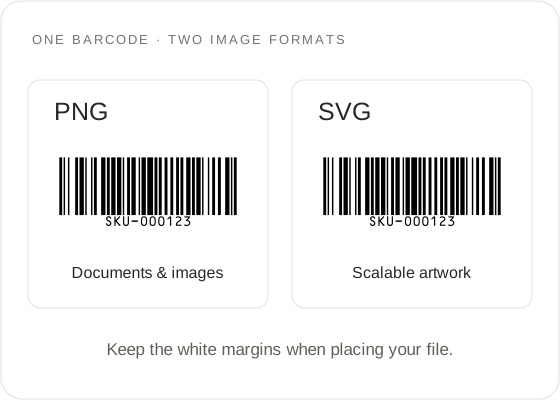
PNG image and scalable SVG artwork with white margins around the barcode
  • Download the complete image

    The EAN generator downloads the barcode shown in the preview. File format chooses SVG or PNG. Files are named barcode-ean13.svg, barcode-ean13.png, barcode-ean8.svg or barcode-ean8.png. Module scale 1–6× changes PNG pixels (default 3×). Bar height 5–60 mm applies to these linear codes (default 18 mm). Quiet zones are part of the SVG. Leave them intact. Reset appearance restores the EAN generator defaults after you experiment.

  • Verify a printed sample

    Print EAN generator files at 100% / Actual size, with Fit to page off. If a scan fails or returns a different number, compare the check-digit note with the supplier record and confirm you printed the downloaded file, not a cropped screenshot. Use example restores 590123412345 on EAN-13, or 9638507 after you switch to EAN-8. Switching to EAN-8 while 12 or 13 digits remain in the box keeps a length error until those digits are replaced.

On your device

EAN generator privacy

  • Keep a copy of the source identifier

    Numbers entered in the EAN generator stay in the browser and never enter the URL. Reloading clears the field. Keep the official GTIN in your product record so you can regenerate the same image later.

Before you generate

Choose the right input before using the EAN generator

Example source record Keep the identifier as text
Product referenceSample item
Barcode value5901234123457
Image filebarcode-ean13.svg

Use your own identifier before printing.

  • Check the source column

    Before using the EAN generator, gather the identifier, its named format and the product variant from the same source record. If a supplier sheet has several identifier columns, check their headings instead of choosing the shortest value. Keep your product reference outside the barcode field so it does not become part of the input.

  • Resolve copied-value errors

    When the EAN generator reports a check-digit error, compare the pasted value with the source character by character. A missing digit in the middle can be harder to spot than a missing final digit. Recopy the original value before changing anything, and resolve conflicting supplier records before producing artwork from either version.

  • Replace the previous product

    When switching products in the EAN generator, replace the previous identifier before reviewing the next preview. Work through one source record at a time and keep each downloaded file associated with that record. This simple sequence reduces the risk of attaching a valid barcode image to a different product during repetitive preparation.

  • Preserve spreadsheet values

    Preserve leading zeros when copying into the EAN generator. Format spreadsheet columns as text before entering identifiers, and compare imported values with the source. Do not copy scientific notation, a product description or a price into the barcode field. The accepted input is the numeric identifier for the selected format.

Ready to hand over

Review an EAN generator download before handoff

  1. Inspect the actual download

    Use the EAN generator preview to verify the completed digits, then open the downloaded SVG or PNG separately. Confirm you selected the intended format and retained the full white border. A file that looks correct in the browser can still be cropped by the document or artwork application where you place it.

  2. Attach the source record

    Keep each EAN generator download associated with its source record. Both the product and its relevant variation should be identifiable in your own handoff notes. The bars do not embed a readable product name or price, so someone receiving only an image may have no way to check which catalogue record you intended.

  3. Test scanning and lookup

    Before ordering a full print run, place the EAN generator file in the actual layout and test a small sample. Compare any scanned number with the supplier record. If the scan succeeds but retrieves the wrong product, investigate the catalogue mapping as well as the input number; redrawing an unchanged identifier cannot repair that mapping.

  4. Prepare formats separately

    For a collection of EAN numbers, use this EAN generator to inspect a representative example and then move to the homepage for lists, CSV/TSV or label PDFs. Keep EAN-8 and EAN-13 source records clearly distinguished when preparing the data. Check the selected format for each batch instead of assuming all numeric strings belong to the same family.

EAN generator FAQ

What does this EAN generator create by default?

The EAN generator defaults to EAN-13. Enter 12 digits to add a check digit or 13 to verify a complete number. Switch Barcode type to EAN-8 for an assigned 7- or 8-digit identifier.

When should I switch the EAN generator to EAN-8?

When you already have an assigned EAN-8 (7 or 8 digits). Do not shorten an EAN-13. The switch keeps your typed text; replace it with the short number or click Use example.

Does the EAN generator register my product?

No. The EAN generator only encodes the digits you provide. A GS1 GTIN is issued separately. A correct check digit does not mean a marketplace will accept the listing.

Why does the EAN generator show “Check digit added”?

The EAN generator completed the 12-digit body. For the example, 590123412345 becomes 5901234123457. The note is not a newly assigned GS1 number.

How does the EAN generator handle check digits?

The EAN generator adds missing final digits (590123412345 becomes …7; 9638507 becomes …4). A full number with the wrong check digit is rejected and not silently fixed.

Can I enter UPC-A numbers in the EAN generator?

The EAN generator cannot tell a complete 12-digit UPC-A from a 12-digit EAN-13 body. If you know the number is a UPC, use the UPC barcode generator. Here, 12 digits are treated as an EAN-13 body and an EAN-13 check digit is added.

Why does the EAN generator reject a complete number?

The last digit does not match the modulus-10 check, or the length does not match the selected EAN-13 or EAN-8 type. Compare with the original GS1 or supplier record.

Does the EAN generator identify a product’s country?

No. The EAN generator does not look up GS1 prefixes or ownership. Check the original GS1 or supplier record.

Can the EAN generator create an unused number?

No. Enter a number you already have from GS1 or your supplier. The EAN generator does not create unissued GTINs.

Does the EAN generator upload or save my numbers?

No. The EAN generator processes numbers locally. The digits are not placed in the URL or analytics. Reloading clears them.

Which EAN generator file should I download?

Choose the EAN generator SVG output for artwork you may resize. PNG for a document. Both come from the same preview. This page does not export AI or EPS.

Can this EAN generator process a batch?

Use the homepage generator for line-by-line input, CSV/TSV and label PDFs. Native XLSX is not supported.

Open the EAN generator