UPC barcode generator.

This UPC barcode generator starts in UPC-A. Enter the 11-digit body or the full 12-digit number you already have, confirm the check digit in the preview, then download PNG or SVG.

Free. No signup. Generating an image does not issue a UPC.

Barcode type

UPC-A

11 digits, or 12 including the check digit. Common in North American retail.

Appearance Size & text

Linear codes only.

PreviewUPC-A
Loading preview…

From value to barcode

How to use the UPC barcode generator

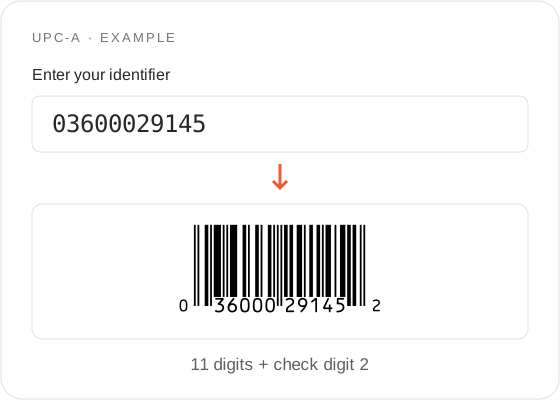
UPC Barcode Generator: example input and its generated barcode
  1. Enter the assigned number

    Enter digits only in the UPC barcode generator. The example 03600029145 is an 11-digit body; this UPC barcode generator adds check digit 2 and shows 036000291452 under the preview. Replace the example with your assigned number before you print.

  2. Verify a complete UPC

    If you already have 12 digits, enter all of them in the UPC barcode generator. A matching check digit keeps the download enabled. A complete number with the wrong last digit is not rewritten; the error names the expected digit so you can compare it with the original record. Other lengths show “Enter 11 digits, or 12 including the check digit.” Letters and spaces are rejected.

  3. Download the checked image

    After accepting 11 digits, the UPC barcode generator preview shows the note “Check digit added:” plus the complete 12-digit string, for the example 036000291452. File format is one SVG/PNG select; the button reads Download SVG or Download PNG. There is no extra export type on this page.

Input reference

UPC barcode generator input: digits, zeros and checks

Input rules and validation
What to checkAccepted values & behavior
UPC-A11 digits, or 12 including the check digit. Common in North American retail.
UPC Barcode Generator validation details

Keep every leading zero

UPC-A uses 12 digits, including the check digit. Enter 11 digits to add the check digit, or 12 to verify a complete number. Keep leading zeros. A UPC that begins with 0 is still 12 digits. Spreadsheets often turn 03600029145 into 3600029145. The UPC barcode generator cannot restore digits that never arrived. Set the column to text before you copy.
Understand the check digit

The check digit is a modulus-10 value over the first 11 digits: from the right, digits are multiplied by 3 and 1 in turn, then the check digit is (10 − (sum mod 10)) mod 10. For 03600029145 that value is 2, so the complete number is 036000291452. A correct check digit does not prove you own the number, that a retailer will list it, or that a printer will scan. It only proves the 12 digits are internally consistent. In the UPC barcode generator, hide the human-readable digits in Appearance; the encoded bars do not change.

Recognize EAN identifiers

A 13-digit string such as 5901234123457 belongs on the EAN page. Do not drop a digit here to “make it a UPC.”

Use the right identifier

This UPC barcode generator does not assign numbers

  • Obtain the number first

    GS1 treats issuing a GTIN and drawing a barcode as separate jobs. You obtain a unique number through GS1, then convert that number into an image. The UPC barcode generator does the second job only. It cannot sell, lease or register a UPC. A plausible 12-digit pattern is not a marketplace GTIN.

  • Use Code 128 for internal SKUs

    Internal SKUs that are not UPC-A should not be forced into 12 digits. Use the Code 128 generator for those identifiers. Encoding “03600029145” as Code 128 produces a different symbol than UPC-A, even when the digits look the same. The UPC barcode generator locks UPC-A so the download is a retail UPC-A image, not a Code 128 lookalike.

Find your format

UPC barcode generator format support

  • UPC-E is unsupported

    UPC-E is a compressed retail symbol listed by GS1. This UPC barcode generator does not support UPC-E. If a partner requires UPC-E, do not zero-pad or truncate a UPC-A on this page and call it UPC-E.

  • Use EAN for EAN numbers

    EAN-13 is 13 digits. If your number is 13 digits, or 12 digits plus an EAN check digit, use the EAN generator rather than dropping a digit here. This UPC barcode generator rejects a 13-digit string.

  • Case codes use ITF-14

    ITF-14 on the homepage is for case codes, not the consumer UPC on a unit.

From screen to print

UPC barcode generator downloads and printing

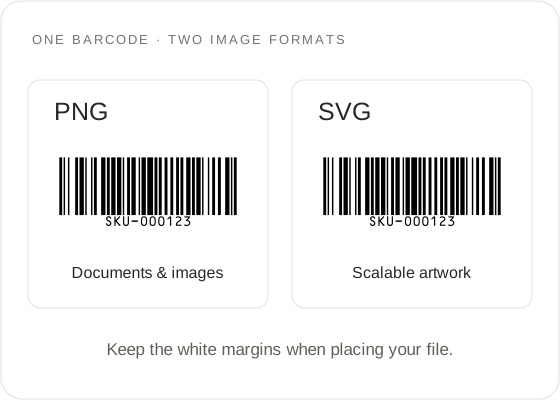
PNG image and scalable SVG artwork with white margins around the barcode
  • Choose the export settings

    The UPC barcode generator exports the live preview image. File format chooses SVG or PNG; the button label follows that choice. Files are named barcode-upca.svg or barcode-upca.png. Module scale 1–6× changes PNG pixels (default 3×). Bar height 5–60 mm applies to this linear code (default 18 mm). Quiet zones are part of the SVG. Reset appearance restores scale 3×, 18 mm and visible text.

  • Print and scan a sample

    Print a test file at 100% / Actual size, with Fit to page off. If a scan fails or returns a different number, paste the identifier from the GS1 or supplier record again, compare the check-digit note, and confirm the printed file was not cropped. The UPC barcode generator cannot certify a printer, ink or a scanner. Use example restores 03600029145 if you need a known-valid path after an error.

On your device

UPC barcode generator privacy

  • Keep identifiers in your own records

    Input to the UPC barcode generator stays in the browser. It is not written to the URL, logs or analytics. Closing the tab clears the number. Keep assigned GTINs in your own product records so you can regenerate the same image later.

Before you generate

Prepare spreadsheet values for the UPC barcode generator

Example source record Keep the identifier as text
Product referenceSample item
Barcode value036000291452
Image filebarcode-upca.svg

Use your own identifier before printing.

  • Set the column to text

    Before pasting into the UPC barcode generator, format the source spreadsheet column as text. Check the displayed value against the original supplier or brand record. Changing a cell to text after a leading zero has already disappeared does not restore that zero. Recover the complete identifier from the original source rather than guessing its length.

  • Copy only the identifier

    Use the UPC barcode generator with the identifier field alone. A copied row may contain a product name, price, spaces or separators beside the digits. Those extra characters are not part of a UPC-A number. For example, a value displayed as 036000291452 should reach the input as those twelve digits, with the initial zero intact.

  • Preserve the complete number

    If your source provides a complete twelve-digit number, keep all twelve when using the UPC barcode generator. Only enter an eleven-digit body when you know the final check digit is intentionally absent. Removing the last digit from a complete number can hide a transcription error by asking the tool to calculate a new final digit.

  • Check representative records

    For a longer list, review a few records before moving to bulk generation on the homepage. The UPC barcode generator helps you check a representative value and its completed number. Include records with leading zeros and any record that previously produced an error. One successful example does not verify every other identifier in a spreadsheet.

Ready to hand over

Match a UPC barcode generator image to the right product

  1. Create a handoff record

    Use a simple handoff record when sharing a UPC barcode generator file: the original identifier, the product or variation it belongs to, and the downloaded image. Keep these details in your own files. This website does not store your product catalogue, attach a product description to the bars, or establish ownership of the identifier.

  2. Compare the actual image

    Before sending the UPC barcode generator image to a designer, open it and compare the visible digits with that handoff record. Keep the original SVG or PNG available so the designer can place it directly. A screenshot of the browser may include unrelated interface elements or omit white space needed around the symbol.

  3. Test the intended layout

    Test a small print sample made from the UPC barcode generator download in the intended layout. Check that the complete image fits and that the printer has not applied an unexpected page scaling setting. Confirm the scanner output against the original number, then confirm that the receiving application maps that number to the correct item.

  4. Resolve catalogue rejection

    If a retailer or marketplace rejects the product record, distinguish that decision from whether the UPC barcode generator produced an image. Recheck the requested identifier and documentation with the receiving party. Repeatedly changing digits until a form accepts them can disconnect the image from the number originally assigned to your product.

UPC barcode generator FAQ

Does this UPC barcode generator give me a registered UPC?

No. The UPC barcode generator draws the number you enter. Obtain a GTIN from GS1 or your brand owner. A valid check digit is not proof of ownership or retailer acceptance.

Can I rename a UPC barcode generator download?

Yes. Renaming a UPC barcode generator file on your device changes its filename, not the encoded digits. Use a filename that helps you match the image to the correct product.

How many digits does the UPC barcode generator accept?

The UPC barcode generator accepts 11 digits to add a check digit, or 12 including it. Other lengths fail. Use digits 0–9 only and keep leading zeros.

Why does the UPC barcode generator show “Check digit added”?

The UPC barcode generator completed your 11-digit body with a modulus-10 check digit. The bars encode that 12-digit string. Compare it with your GS1 or supplier record before printing.

How does the UPC barcode generator handle a wrong check digit?

The UPC barcode generator blocks downloads of complete 12-digit numbers with the wrong last digit and names the expected digit. The first 11 digits are not auto-corrected.

Does this UPC barcode generator support UPC-E?

No. This UPC barcode generator creates UPC-A only. UPC-E is not available.

Does the UPC barcode generator preserve leading zeros?

Yes. The UPC barcode generator preserves the zeros you enter because they are part of the identifier. If a spreadsheet dropped them, paste the full 11 or 12 digits from the original source. The generator cannot invent missing zeros.

Should I use the UPC barcode generator or the EAN tool?

UPC-A is 12 digits; EAN-13 is 13. Use this page for an assigned UPC-A and the EAN generator for an assigned EAN. Do not strip or add a digit to “make it fit.”

Does the UPC barcode generator put numbers in the address bar?

No. The UPC barcode generator keeps the identifier out of the URL. Reloading clears the field.

Does the UPC barcode generator upload my numbers?

No. The UPC barcode generator processes numbers locally. Downloads stay in the folder you choose.

Which UPC barcode generator file should I download?

Choose the UPC barcode generator SVG output for artwork you may resize. PNG for a document. Both come from the same preview.

Can the UPC barcode generator print a label sheet?

Download one PNG or SVG here. For CSV lists and label-layout PDFs, use the homepage generator. Native XLSX is unsupported.

Open the UPC barcode generator